Variables usage in Test Case and Test Automation
To make test data and test cases independent from each other, avoid repeating the same test data multiple times in test cases, and simplify test data future maintenance, it is recommended to define and use variables in test cases and reference them in test steps.
Using variables helps to:
- Reduce duplication of test data
- Simplify maintenance of test cases
- Make tests reusable across different environments
- Support dynamic values extracted during execution
Ottotest supports Five types of variables.
Variable Types
Profile Variables
Scope: Current test case only
Profile variables are accessible only within the current test case. They are useful when the same test data is used multiple times within a single test case.
Instead of repeating the same value across multiple steps, it is recommended to store it in a profile variable and reference it throughout the test case. This simplifies maintenance and reduces the risk of inconsistencies.
Example use cases:
- Reusing the same email address in several steps
- Using the same product name multiple times
- Defining a test-specific user account
Create profile variable
- Open Profile variables Drawer menu (from right side of the screen) and start to create
- Right click on text (test data) for which you want to create a profile variable and select "Create as profile variable" right click menu item which will open Profile variables Drawer menu automatically.
Use profile variable In test case editor (action or validation) - autocomplete take place.
Example
Enter ${prf.user_email} in Email field
Environment Variables
Scope: Whole project
Environment variables are shared across the entire project and are accessible from all test cases.
They are typically used for environment-specific configuration or shared test data.
Example use cases:
- Base URLs
- API endpoints
- Default credentials
- Shared identifiers
This approach allows the same test cases to run in different environments (e.g., staging, QA, production) without modifying the test steps.
Create environment variable
- Open Environment variables Drawer menu (from right side of the screen) and start to create
- Right click on text (test data) for which you want to create a environment variable and select "Create as environment variable" right click menu item which will open Environment variables Drawer menu automatically.
Use profile variable In test case editor (action or validation) - autocomplete take place.
Example
Navigate to ${env.base_url}/login
Localization Variables
Scope: Whole project
Localization variables are used for localization and translation data shared across test cases.
They help ensure that UI validations remain consistent when the application supports multiple languages.
Example use cases:
- Translated UI labels
- Button texts
- Validation messages
- Error messages
This allows the same test case to run against different localized versions of the application.
Create Localization variable
- Open Localization variables Drawer menu (from right side of the screen) and start to create
- Right click on text (test data) for which you want to create a Localization variable and select "Create as localization variable" right click menu item which will open Localization variables Drawer menu automatically.
Use Localization variable In test case editor (action or validation) - autocomplete take place.
Example
Verify button text equals ${loc.login_button_text}
Local / Runtime Variables
Scope: Current test case during execution
Local (runtime) variables are created and assigned during test execution. Their values are typically extracted from the system under test and reused in later steps.
These variables enable dynamic testing scenarios.
Example sources:
- UI elements
- Network responses
- API responses
- Generated IDs or tokens
Example workflow
Step 1 – Extract value:
Store order ID from confirmation message as ${order_id}
Step 2 – Use later in validation:
Verify order ${order_id} is present in Order History
Runtime variables are essential for validating dynamic data generated during test execution.
Attachment variables
Scope: Current test case during execution
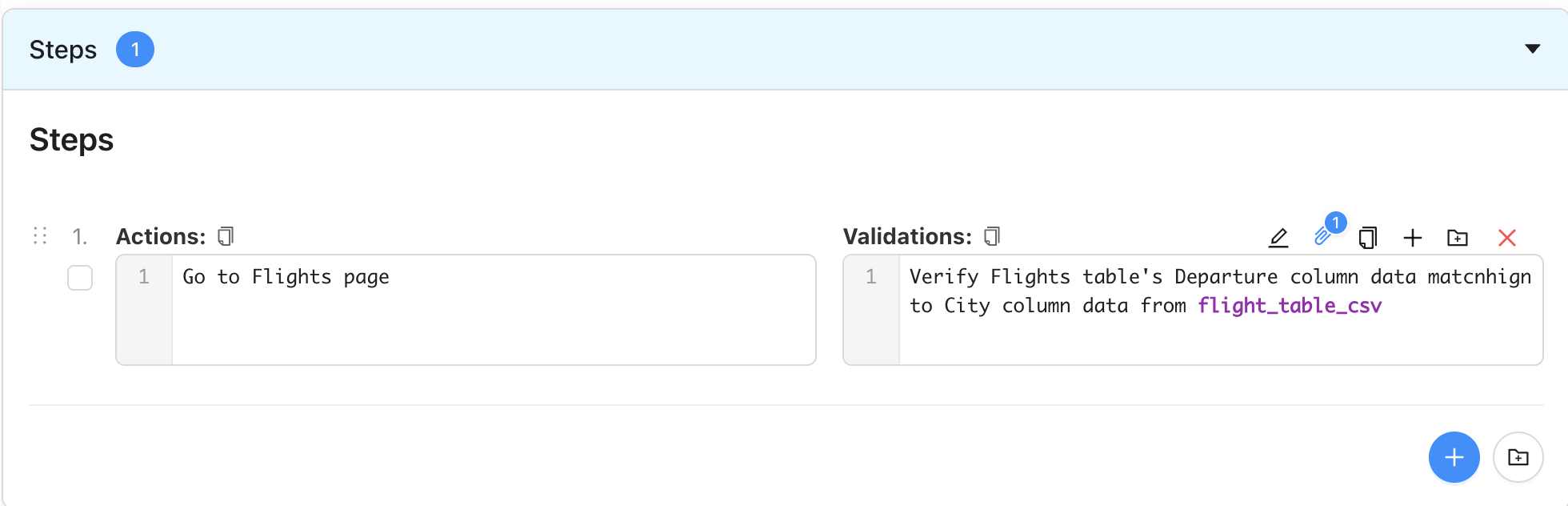
Attachment variables are created and assigned during test execution. Their values are typically extracted from attached files - currently supporting CSV formatted files.
These variables enable UI validations against data defined in CSV file and attached to test case.
Scenario User navigates to page where table formatted data is visible and user need to validate the UI table data against pre-created CSV data.
Note: data valdiation can be exact matching of regexp matching based on CSV file content.
Add Attachment
There is a dedicated button on top of test step to add/ament attachment files.
Use attachment variable In test case editor (action or validation) - autocomplete take place.
Example
Verify Flights table's Departure column data matcnhign to City column data from ${att.flights_data}